Show a client where the work stands with a link
Your client wants to know how the work is going. Instead of writing an e-mail every time, you can send them a link to the task or the project. They open it in the browser without signing up and see the same status your team sees. Share links are on the Pro plan.
What the client sees
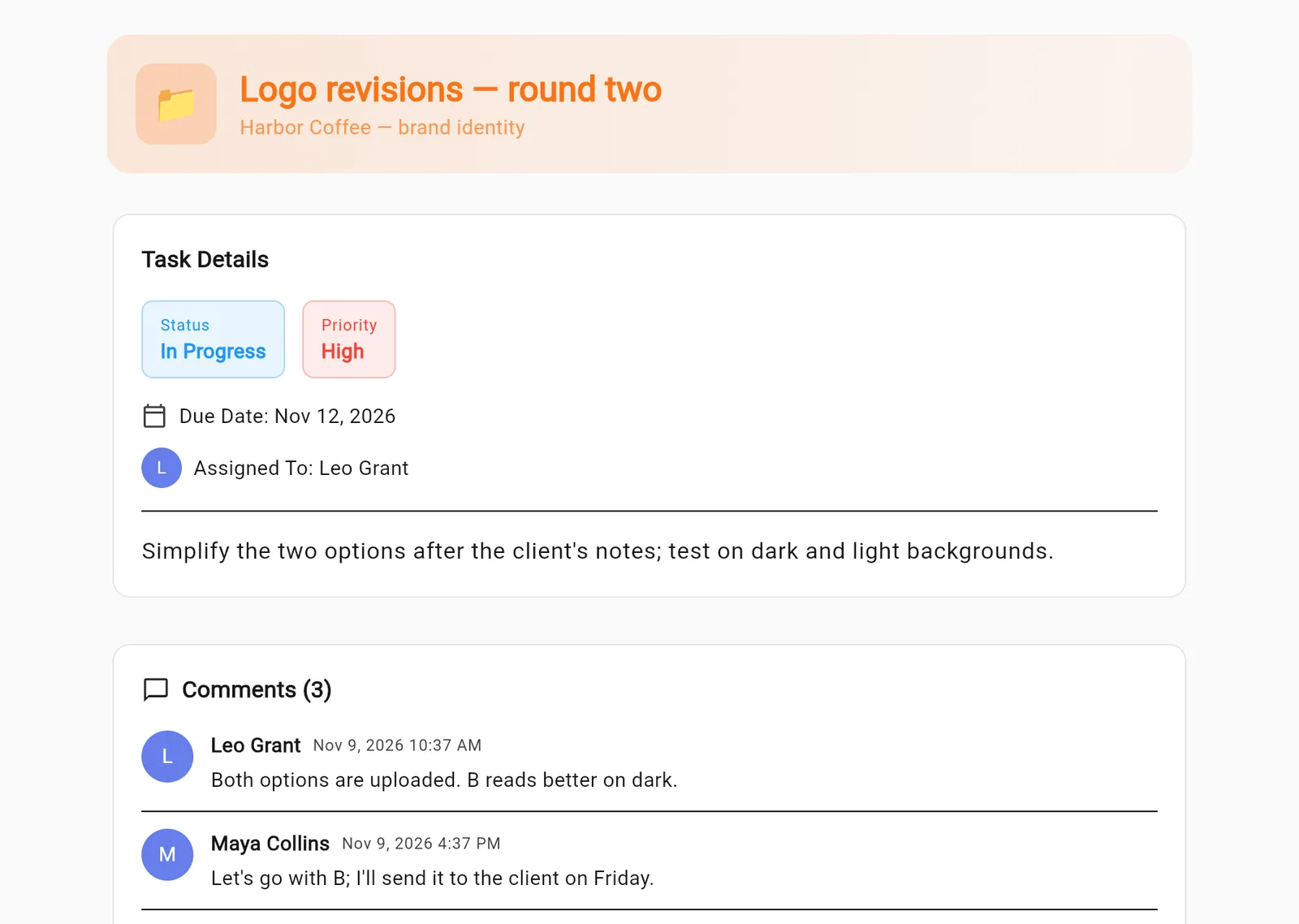
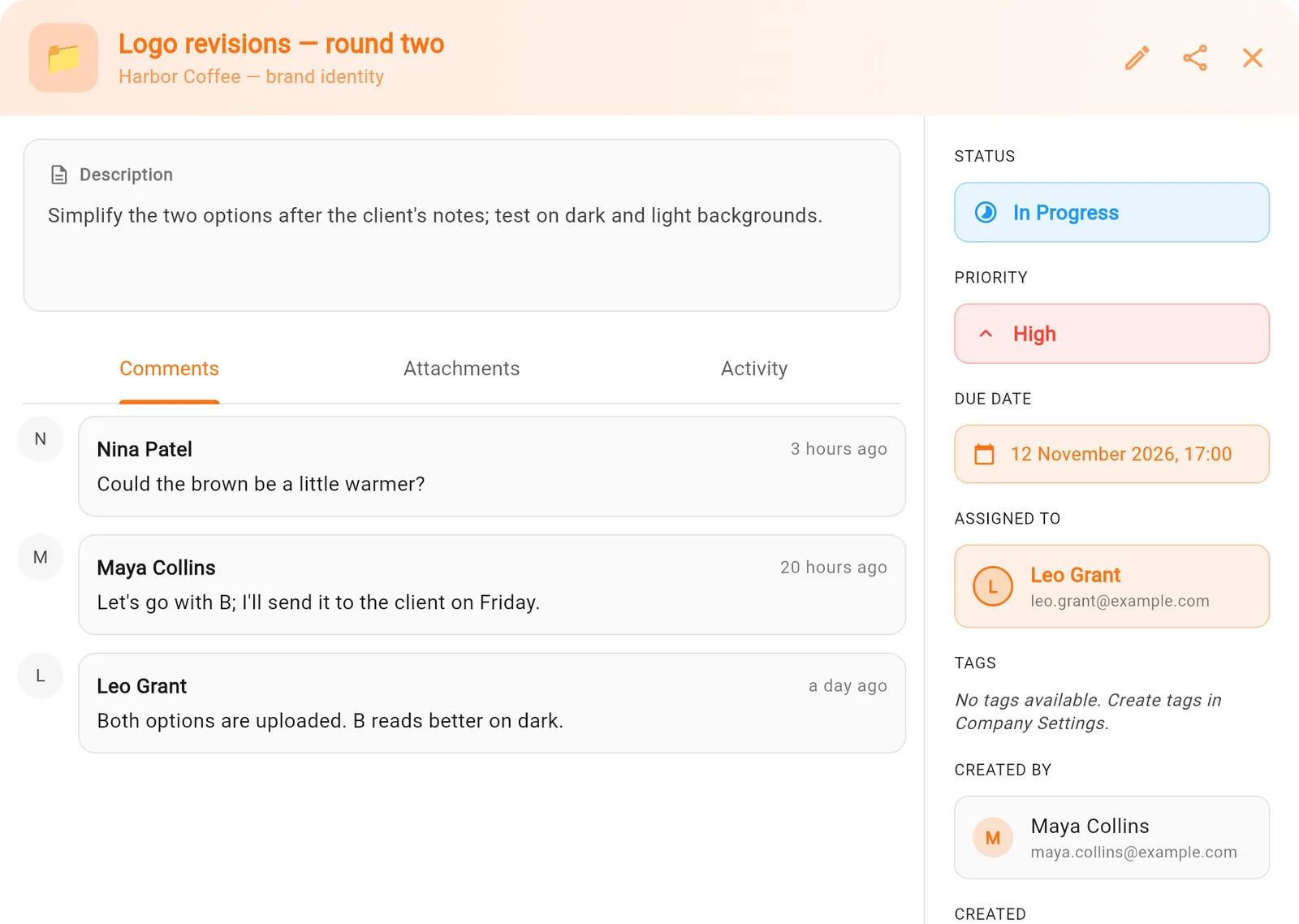
On a task link: the title and description, status, priority, due date, the person responsible, the comments, and the list of attached files (name, size, type).
On a project link: the project's name and description, how many people are on the team, and how many of its tasks are done.
The client can't change anything. Each time they open the link, they see the work as it is at that moment.
Create a link
- Open the task (or the project) and click the share icon, Share Link.
- Under Link Expiration, choose Never, 1 day, 7 days or 30 days.
- Click Create Link. The link is copied to your clipboard.
- Paste it into your e-mail or message to the client, or use Share via Email.
Set an expiry or turn a link off
A link with an expiry stops opening when the time is up. To turn a link off right away, open Share Link again and, under Active Links, click Revoke. The list shows each link's state (active, expired or revoked) and how many times it was opened.
Tips
- Anyone who has the link can open it. Send it only to the people who should see the work.
- Pick a short expiry for a one-off update. For a client who checks in every week, pick Never and turn the link off when the project ends.
- Plans and prices: pricing. More on links: help: share links.